

Site en Français

Website in english
Online FIO Results Viewer | Analyze FIO JSON & .log files
Analyze your Flexible I/O Tester results instantly. Upload your FIO JSON output to transform raw data into clear, actionable charts. Compare IOPS, Latency, and Throughput in second. The easiest way to read your Flexible I/O Tester benchmarks. Drop your JSON output below to get a clear analysis of your storage performance, including IOPS, Latency (p95/p99), and Throughput.
Stop struggling with massive JSON files. Our Online FIO Results Viewer allows you to instantly visualize your Flexible I/O Tester benchmarks. Simply paste your JSON output or upload your file to get a clear analysis of your storage performance, including IOPS, Throughput, and Latency percentiles (p95, p99).
Section FAQ : Key Metrics Explained (Très important pour le SEO “Featured Snippets”)
Q: What is the difference between IOPS and Throughput?
IOPS (Input/Output Operations Per Second): Measures the number of small operations (like 4K random reads). It’s the most critical metric for database performance.
Throughput (MB/s): Measures the data transfer speed. It’s more important for large file transfers or video streaming.
Q: Why should I focus on p99 Latency?
Average latency often hides performance spikes. The p99 (99th percentile) latency shows you the maximum response time for the slowest 1% of your requests. In a production environment, a high p99 latency can cause application “freezes” even if the average is good.
Here the link to FIO : https://fio.readthedocs.io/en/latest/fio_doc.html
The data are uploaded to a directory on the server but is not stored more than needed; this folder is regularly deleted for privacy and space reasons + When I click on the clear button, it erases the full directory and resets the cache of the page.
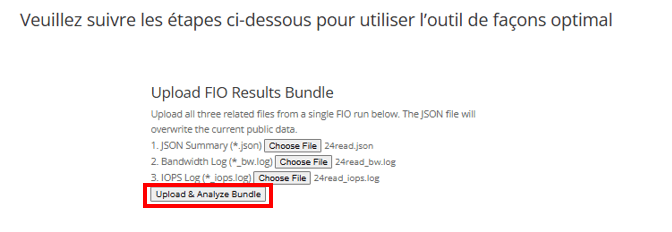
Please follow the steps below to use the FIO Results Viewer tool optimally.
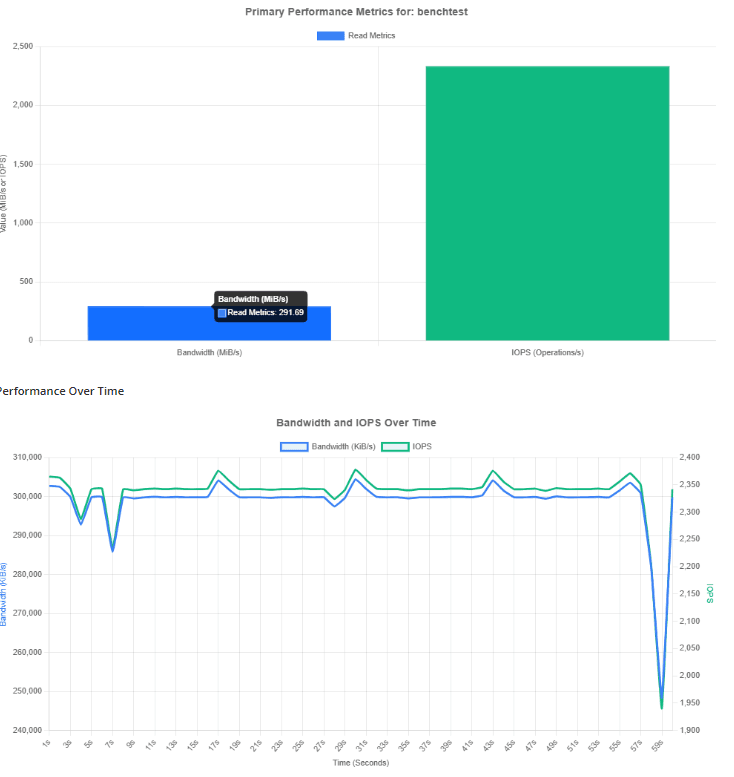
IOPS Summary
Read/Write Ratio (Bytes)
Bandwidth & IOPS Timeline
Latency Distribution
To begin, you need to add these options to your FIO Benchmark:
Name of the file output.json
–output=24TBread
Format of the file output
–output-format=json
bw logs & iops logs (After the =, this is the name you give to your file. .log)
–write_bw_log=fio24TB-log
–write_iops_log=fio24TB-log
Add the timing
–log_avg_msec=1000
Here is a complete example
sudo fio –filename=/media/yourhddorvolumeemplacement/fioread.txt –size=100MiB –rw=read –direct=1 –refill_buffers –norandommap –randrepeat=0 –ioengine=libaio –bs=128k –iodepth=32 –numjobs=1 –time_based –runtime=60 –group_reporting –nam=benchtest –output=24TBread –output-format=json –write_bw_log=fio-log –write_iops_log=fio-log –log_avg_msec=1000
Run the benchmark; you should get 3 files once it’s finished.
You need to rename the .log files to match the JSON file name, like this: if the JSON file doesn’t have an extension, simply rename it by adding .json to the end. It should look like this:
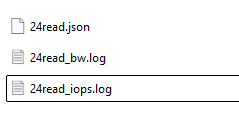
Now, download the files and click on “Upload & Analyze”:
You should get a result like this:
Planning a new cluster? Use our